ERT Map v2.3.0 Winter 2026 Release Notes
The following are new features that are included in the latest ERT Map release. All programs on the new map will receive these updates with their next quarterly update. Highlighted items are further explained in Change details section below:
- Save a map
- Resize the feature table
- Add Layer – raster tile layer (definition: the service capabilities includes “TilesOnly” and the type is “MapServer”)
- Bug fix: Restores ability to use CTL+drag to select features on the map
We welcome your feedback in the Forum https://ertsupport.natureserve.org/support/discussions/topics/331470
Change details
>Save a map
This feature allows signed-in users to save map settings for their own future access. Settings that can be saved are:
- Zoom level
- Basemap
- Layer visibility (whether a layer in the Layer catalog is turned on/off)
- Layer transparency
- Layer catalog group order and expansion
- Add Layer (URL only; individual shapefiles not supported)
You must sign in to access the Save a Map feature.
Create a Saved Map
1. Adjust the map to the settings that you want to save.
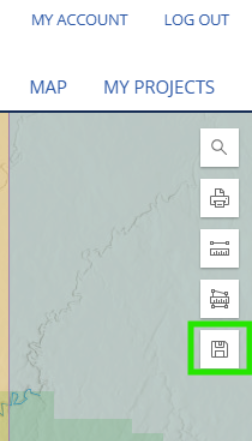
2. Once you have the map set to a view you would like to save, select the save icon on the right side of the screen.
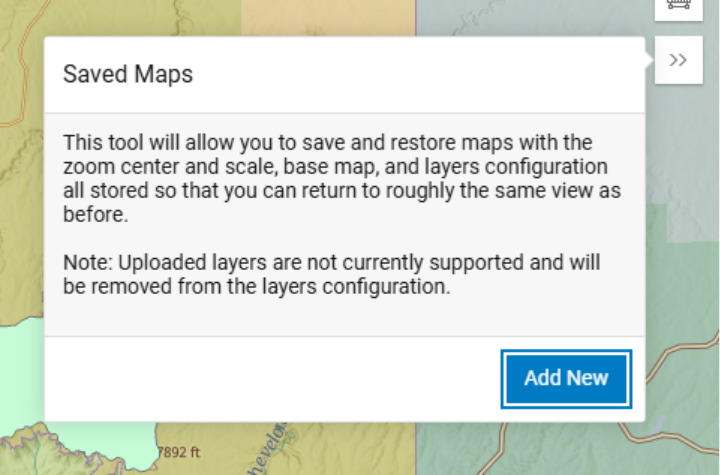
3. Select “Add New”.
4. Add a Title and Description. Select Save. 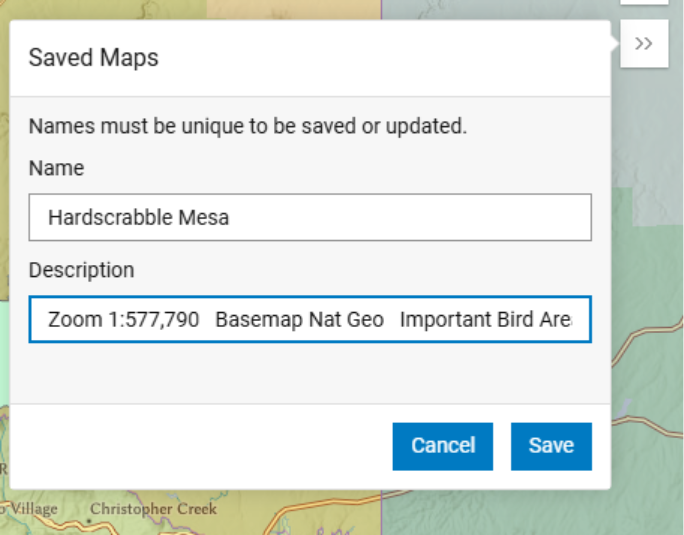
Load a Saved Map
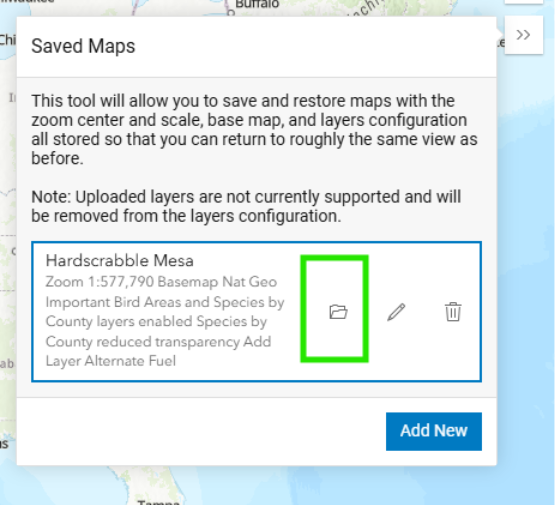
Select the folder icon
Edit a Saved Map
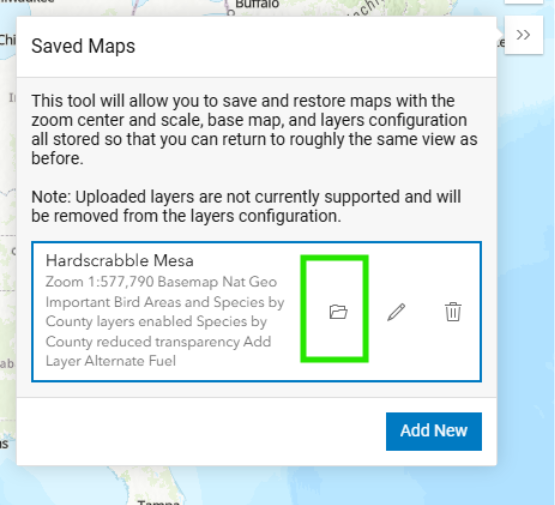
1. IMPORTANT STEP: Select the folder icon to load the map you would like to edit. If you do not load a map before selecting Edit, the map will be overwritten with whatever settings are currently displayed on the map.
2. Once the map is loaded, adjust to the settings you would like to save, then select the Edit icon (pencil).
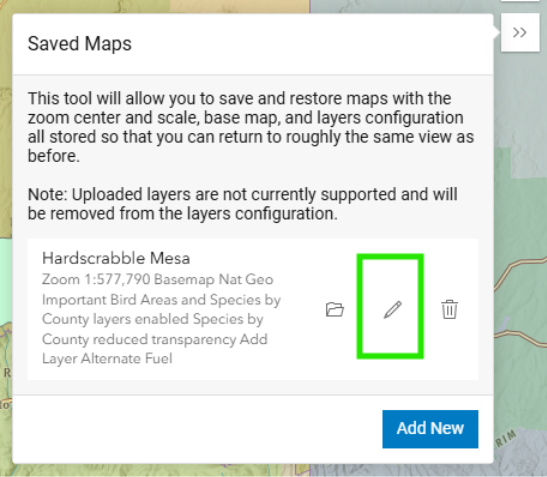
3. Update Title and Description (optional). Select Save.
>Resize the feature table
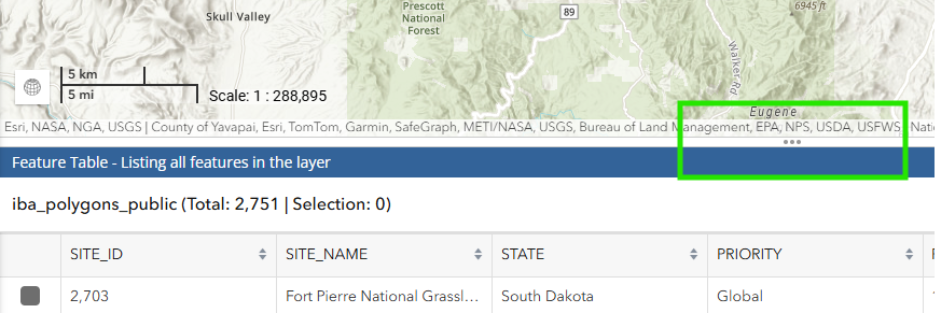
The feature table can now be manually resized by dragging the upper edge.
- Hover along the top of the table (look for line with three dots), and the resize cursor (double-headed arrow) will appear.
- Click and drag to resize the table.